
The wizard
Znuny-LLM ships with a guided setup wizard that walks you through the entire configuration from start to finish. It writes the provider credentials, web service configuration, and feature flags for you. When the wizard is done, LLM features are live. You never have to open System Configuration to get started, though you can always go back and tune things there later.
The wizard appears automatically in the admin interface after the package is installed. If you are not ready to configure it yet, there is a "Skip for now" option that lets you return later.
TL/DR
Znuny-LLM sets up in six wizard steps - no manual config, no System Configuration digging - and works with Ollama, OpenAI, Azure, or any OpenAI-compatible endpoint. Pick your provider, paste a URL, test the connection, choose your models and features, and hit Apply. Done in under ten minutes.
Step 1 - Welcome
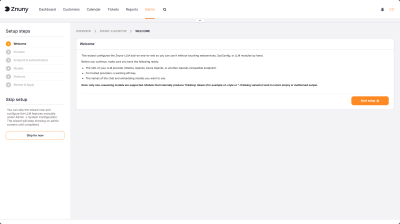
The first screen lays out what the wizard needs from you before you begin: the URL of your LLM provider, an API key if you are using a hosted service, and the names of the models you want to use. That is the entire prerequisites list. If you already have an Ollama instance running, you may not even need the API key.
The wizard also flags one important constraint upfront: only non-reasoning models are supported. Models that internally produce thinking tokens - o1-style or *-thinking variants - produce empty or malformed output and should not be used
Step 2 - Select Provider
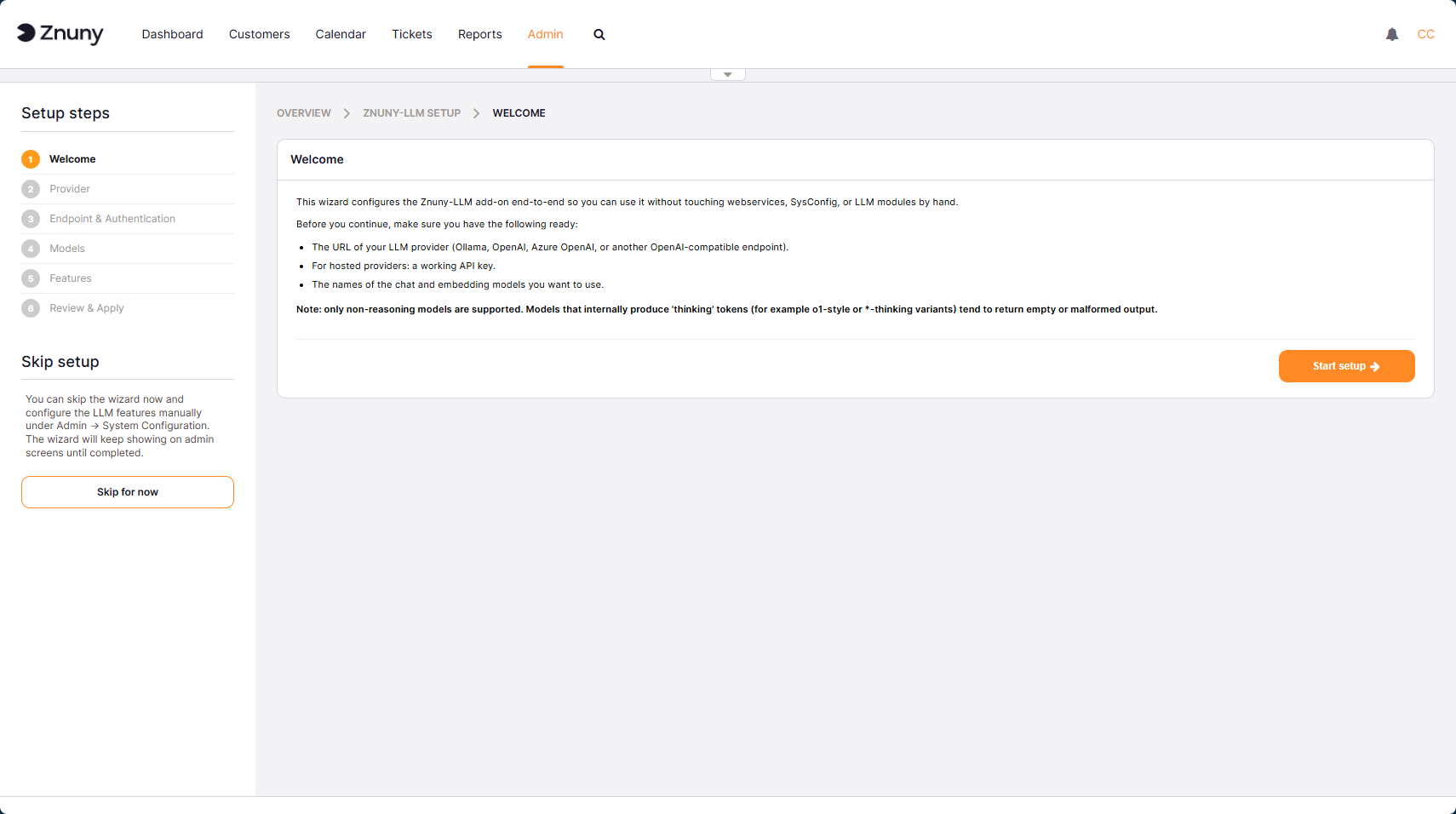
On the provider screen, you choose how your Znuny instance will talk to the LLM. Four options are available:
Ollama is the default choice for teams running a local or self-hosted instance. It requires no authentication and works with the default Docker setup out of the box.
OpenAI connects to the hosted API at api.openai.com and requires an API key.
Azure OpenAI targets a managed Azure deployment and requires a resource URL, API key, deployment names, and API version.
OpenAI-compatible (other) covers any endpoint that speaks the OpenAI /v1 protocol - LiteLLM, vLLM, Together, Groq, and similar. The bearer key is optional.
Most teams running a self-hosted stack will pick Ollama. Teams with an existing Azure OpenAI agreement can point directly at their tenant without any intermediate layer.
Freedom of Choice
The breadth of that list is deliberate. Znuny has always been built on the belief that your tools should work for you, not the other way around. We are not in the business of deciding which AI provider is right for your organization, and we have no interest in locking you into one. If you start with a local Ollama instance today and later want to move to a different model or provider, you update the endpoint URL, and you are done. No migration, no contract renegotiation, no dependency on a SaaS layer that could change its pricing or disappear. The same Znuny-LLM package works with all of them.
Back to the Start
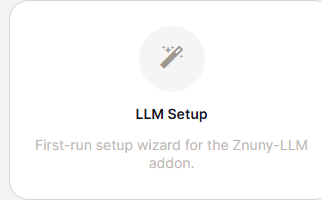
At any time, you can restart the wizard by visiting this module in the administration overview. This can also be disabled in the system configuration, or limited to a special admin group, there by keeping your installation safe from accidental reinitialzation.
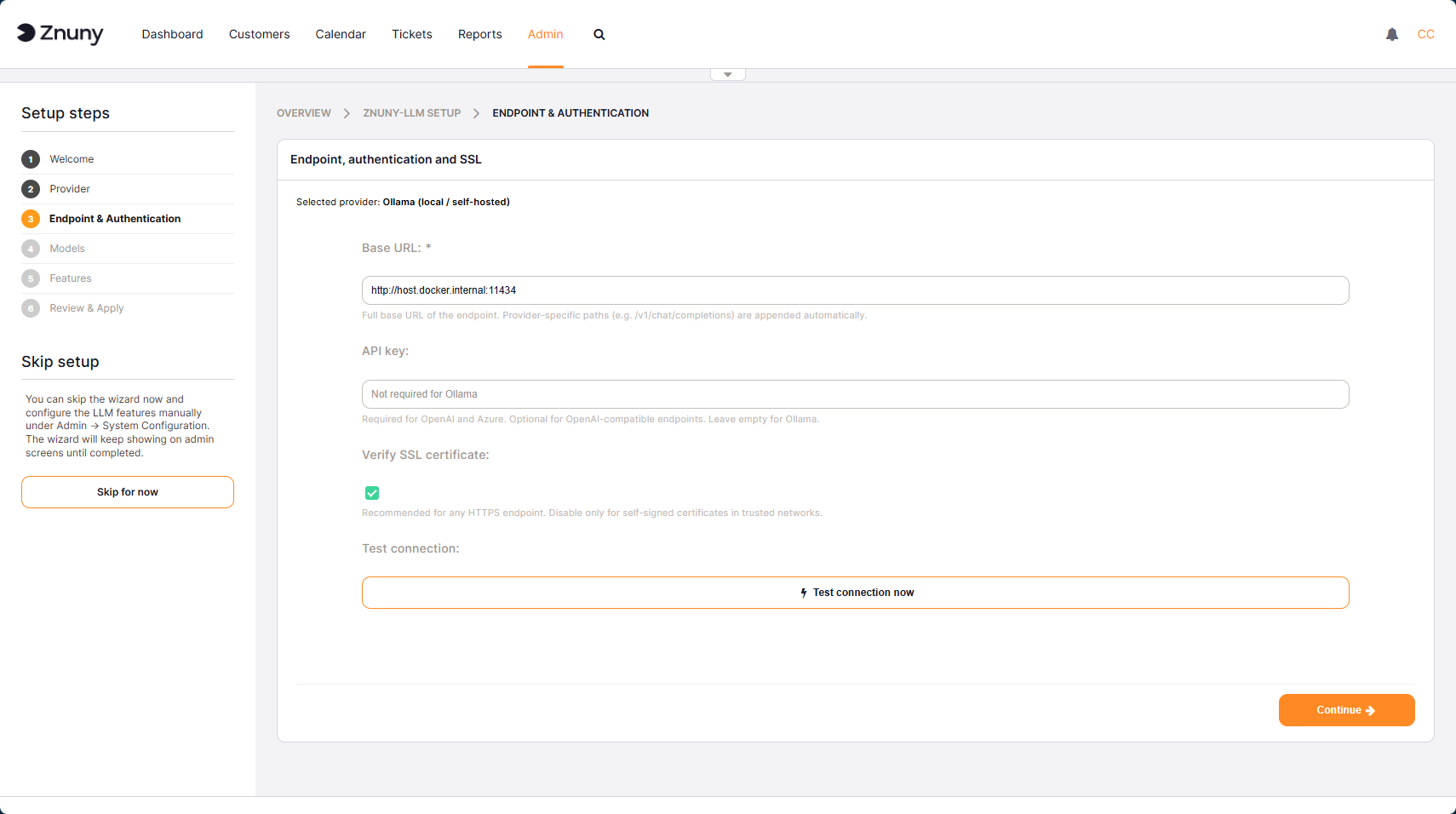
Step 3 — Endpoint & Authentication
Once you have selected a provider, the wizard asks for the connection details. For Ollama, this is just a base URL. The default value (http://host.docker.internal:11434) is pre-filled and works immediately when you run Ollama in Docker alongside Znuny.
For a remote Ollama instance - or any other endpoint — you enter the URL directly. The wizard appends provider-specific paths like /v1/chat/completions automatically, so you only need the base address.
A "Test connection now" button lets you verify the endpoint before moving on. When the connection succeeds, the wizard lists all models it detects at the endpoint. That list carries forward into the next step.
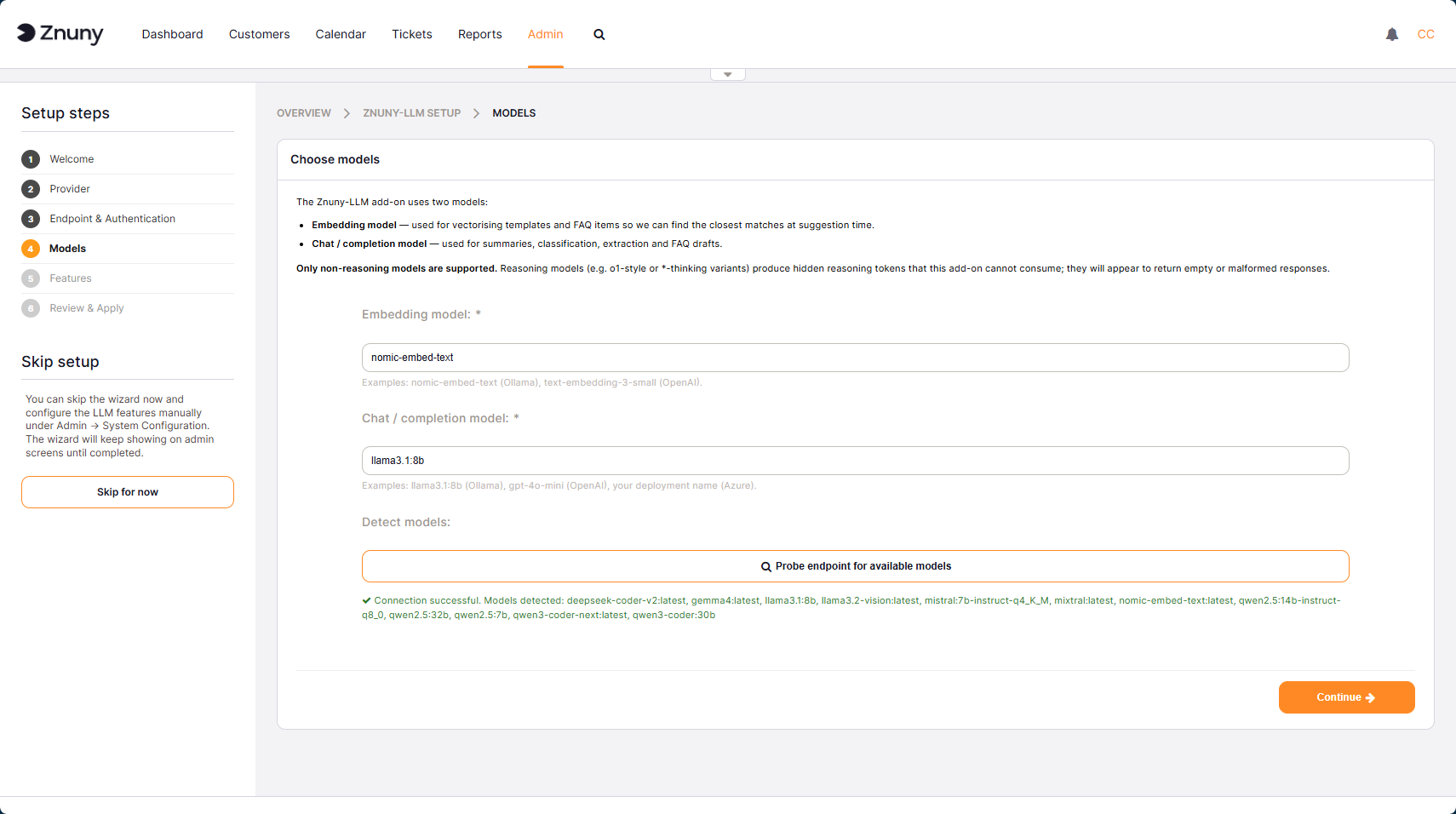
Step 4 — Models
Znuny-LLM uses two models for different jobs. The embedding model converts ticket content and templates into vectors used for semantic matching - finding the most similar FAQ or template for a given ticket. The chat model handles everything that requires generating text: summaries, classifications, extracted values, and reply rewrites.
You type the model names into the two fields, or use the "Probe endpoint for available models" button, which queries the endpoint and populates what is available. In the example above, nomic-embed-text is the embedding model and llama3.1:8b handles chat. Both were detected automatically in the previous step.
Pluggability for the Future
The breadth of that list is deliberate. Znuny has always been built on the belief that your tools should work for you, not the other way around. We are not in the business of deciding which AI provider is right for your organization, and we have no interest in locking you into one. If you start with a local Ollama instance today and later want to move to a different model or provider, you update the endpoint URL and you are done. No migration, no contract renegotiation, no dependency on a SaaS layer that could change its pricing or disappear. The same Znuny-LLM package works with all of them.
- Ticket summary generates a short, factual two-to-four sentence digest of the full ticket conversation out-of-the box. These can be individually modified. They are updated automatically whenever a new article arrives. Summaries are stored per language and rendered in the agent's preferred language, so a multilingual team can each read the ticket in their own language, regardless of how the customer wrote it. Znuny-LLM also rewrites incoming email subjects into short, descriptive titles in the customer's own language. Phone and internal tickets are left untouched.
- Routing/classification reads the first customer message and defines the queue, type, service, and SLA based on the values your Znuny instance actually supports for that ticket. The data appears, additionally, in a sidebar widget on the ticket zoom screen. Agents vote on each field with a thumbs-up or thumbs-down. Confirmed votes are stored and fed back into subsequent classification calls as few-shot examples, so the model improves from your real-world routing decisions. Over time, human intervention as an LLM Auditor will refine the classification process as needed and voted upon.
- Extraction to dynamic fieldsets, administrators describe in plain language what to pull from ticket content — an invoice number in a specific format, an order ID, a serial number, a product name - and the LLM writes the extracted value into the target dynamic field on every new article. No regex maintenance, no separate parser per format. The extraction rules admin screen links are directly available on the setup completion page.
- Template recommendations rank your existing standard templates by semantic similarity to the article an agent is currently answering, and surface the closest matches in the compose screen. Templates are automatically embedded as they are created or edited, so the suggestions stay current without manual indexing. Agents can also highlight a passage while composing a reply and have the LLM instantly polish it using the queue's answer prompt and the ticket's detected language.
- FAQ matching & knowledge drafts do two things. First, it surfaces the FAQ entries most semantically similar to a ticket's content, along with template suggestions, so agents can link to or quote relevant knowledge articles without searching manually. Second, it lets admins generate a draft FAQ article directly from a resolved ticket conversation — with similar existing FAQs injected into the prompt to avoid duplicates - and publish it as a new FAQ item, optionally linked back to the source ticket.
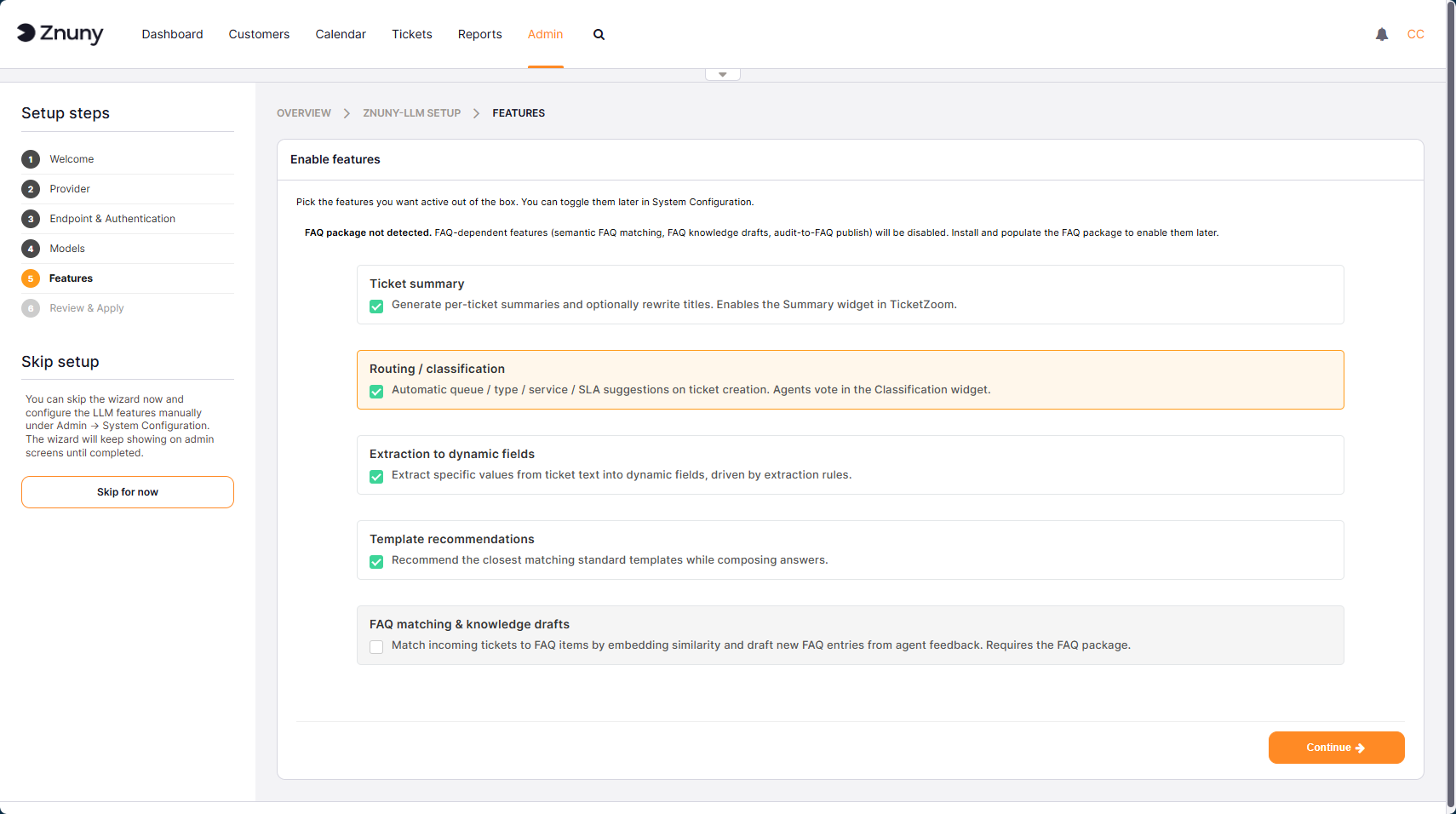
Step 5 - Features
The features screen lets you choose which LLM capabilities to switch on immediately. All four main features are enabled by default. FAQ matching and knowledge drafts require the Znuny FAQ package and remain greyed out if it is not installed. You can toggle any feature off if you prefer a staged rollout and re-enable them later from System Configuration.
Step 5 - Summary and Start
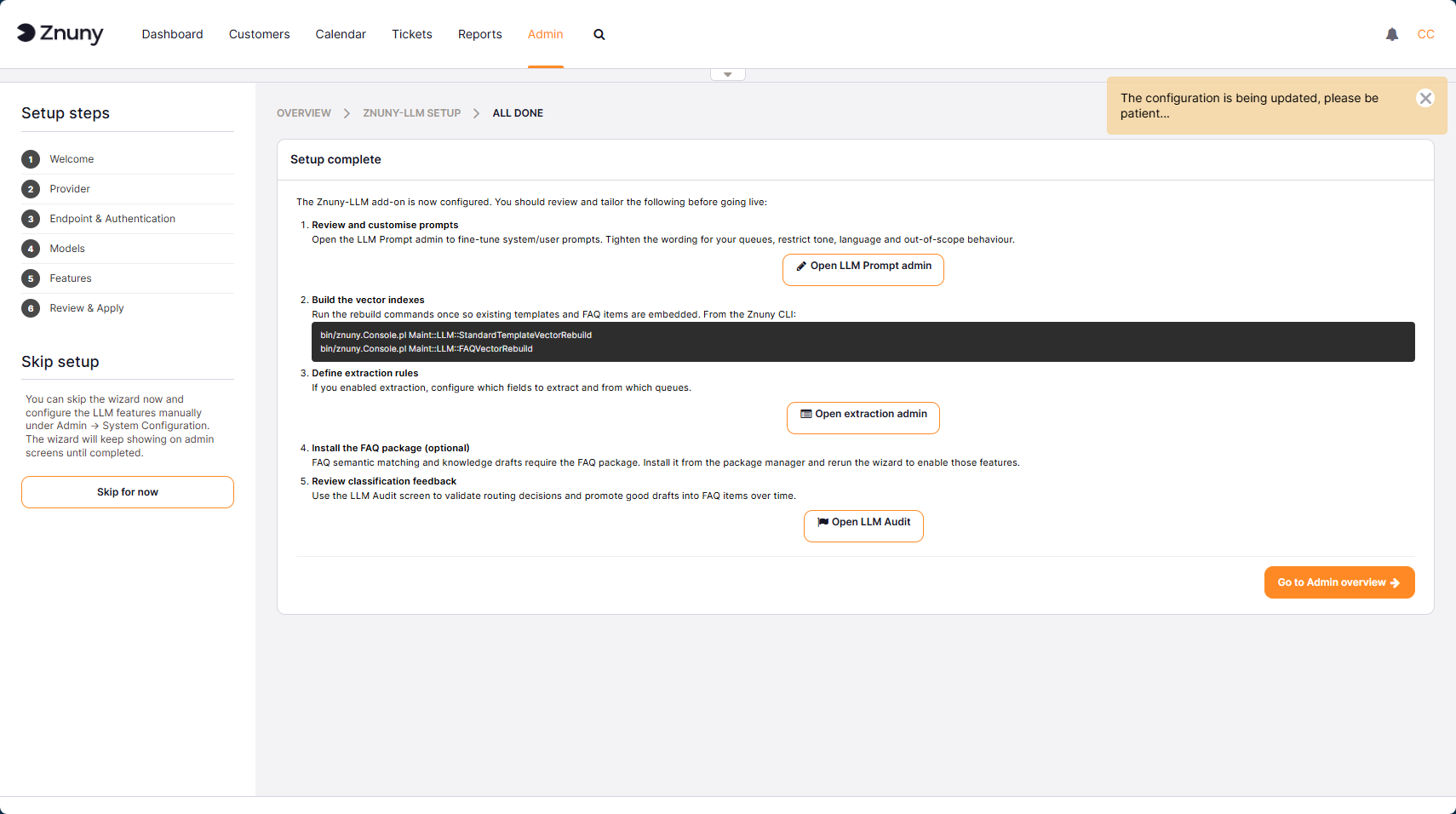
The completion screen lists a few follow-up steps to complete before going live. The most important is rebuilding the vector indexes so that existing templates and FAQ items are embedded and available for suggestion. Two CLI commands handle this:
bin/znuny.Console.pl Maint::LLM::StandardTemplateVectorRebuild bin/znuny.Console.pl Maint::LLM::FAQVectorRebuild
The screen also links directly to the LLM Prompt admin, where you can review and tighten the default system prompts for your queues, the extraction rules admin, and the LLM Audit view for reviewing classification feedback over time.
What it looks like in practice?
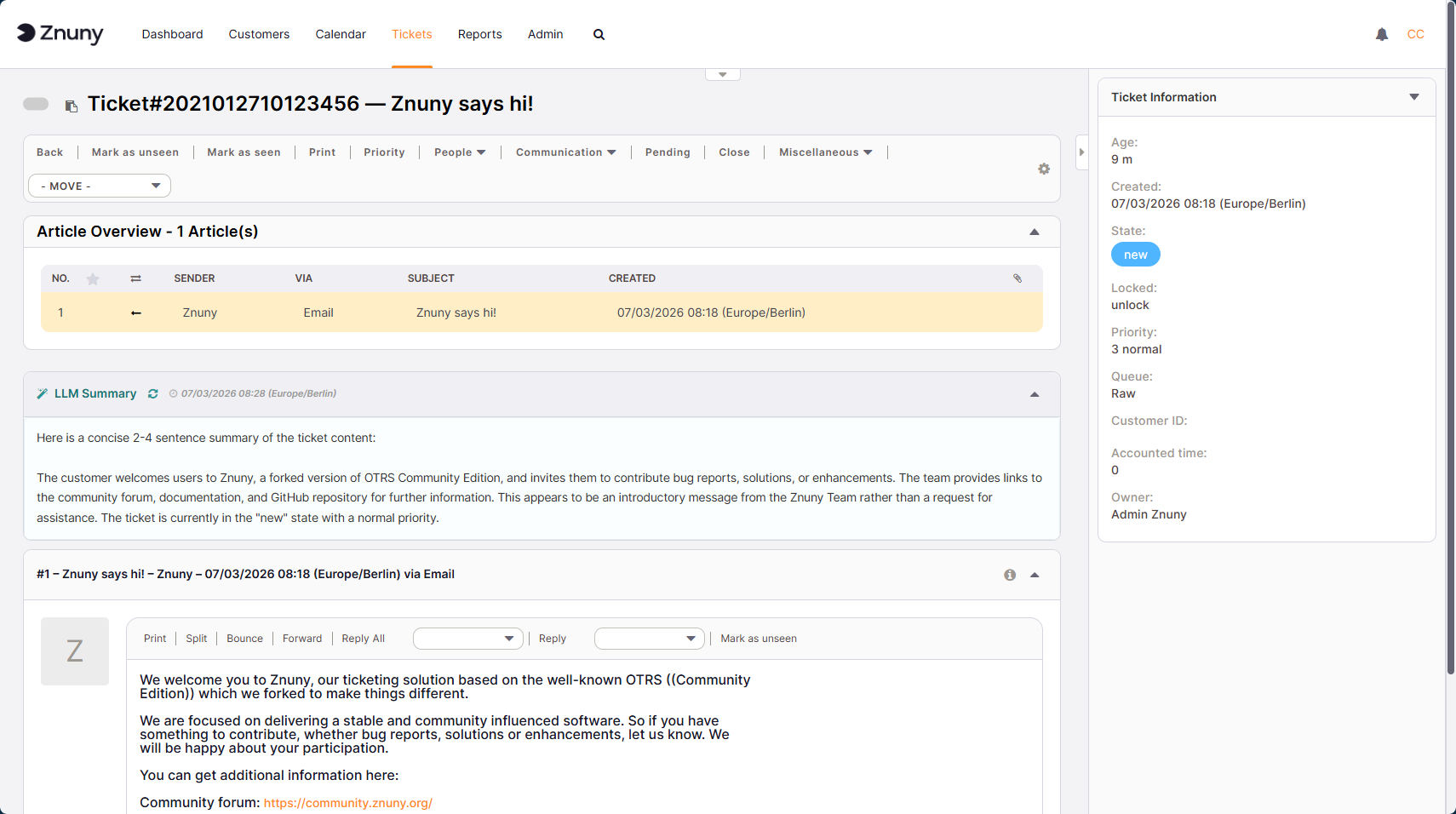
Once the Znuny daemon picks up the new configuration, the LLM features begin working on incoming tickets immediately. The summary widget in the ticket detail view updates as new articles arrive, giving agents a two- to four-sentence digest of the full conversation without scrolling. Classification suggestions appear in the sidebar and improve as agents vote on them. The entire process - from installing the package to seeing the first ticket summary - takes less than ten minutes if your LLM endpoint is already running.
Summary
Znuny-LLM adds AI-driven ticket summarization, automatic routing suggestions, data extraction, and template recommendations to your service desk - all running on infrastructure you own. There is no vendor subscription, no data leaving your environment, and no lock-in to a specific AI provider. If your LLM strategy changes, you swap the endpoint URL and continue. The setup requires no developer involvement; an admin can complete it from the Znuny interface in a single session.
- News
- Product Updates