
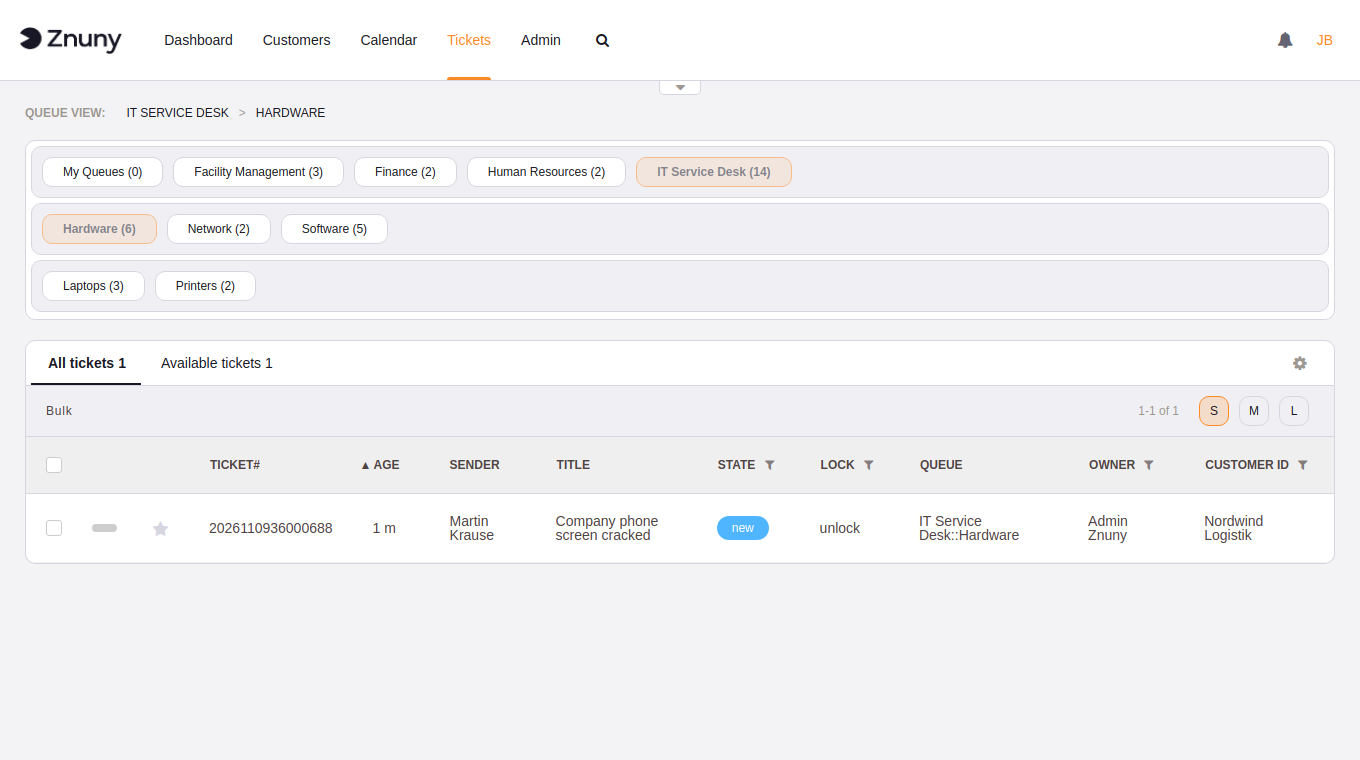
With a handful of queues, finding the right one is as simple as clicking a row of buttons: click, done. Larger installations often have many queues and many levels. The bar of sub-queues grows and pushes the tickets further out of reach. The more queues, the more the bar wraps, and the further you have to reach. Znuny LTS 7.5 comes with alternatives.
Three new options
Top
If your list of queues is short, flat or otherwise easy to navigate, stay with what you know. (Default setting)
Top + Hover
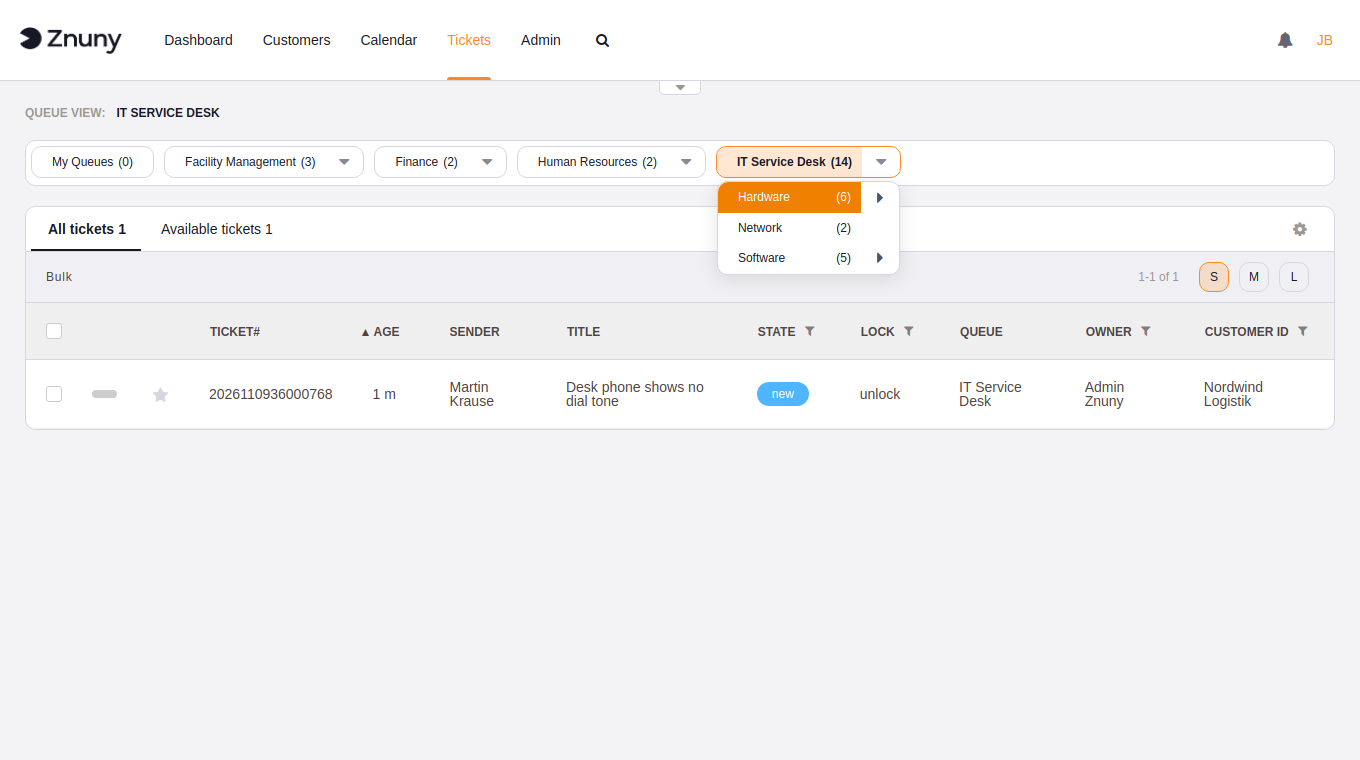
More queues, more levels? Switch to a more modern drop-down approach. Only the sub-queues of the current level are shown. Navigate back using the breadcrumbs or the drop-downs of the level above. Navigate deeper using the arrows of the current sub-level.
Sidebar
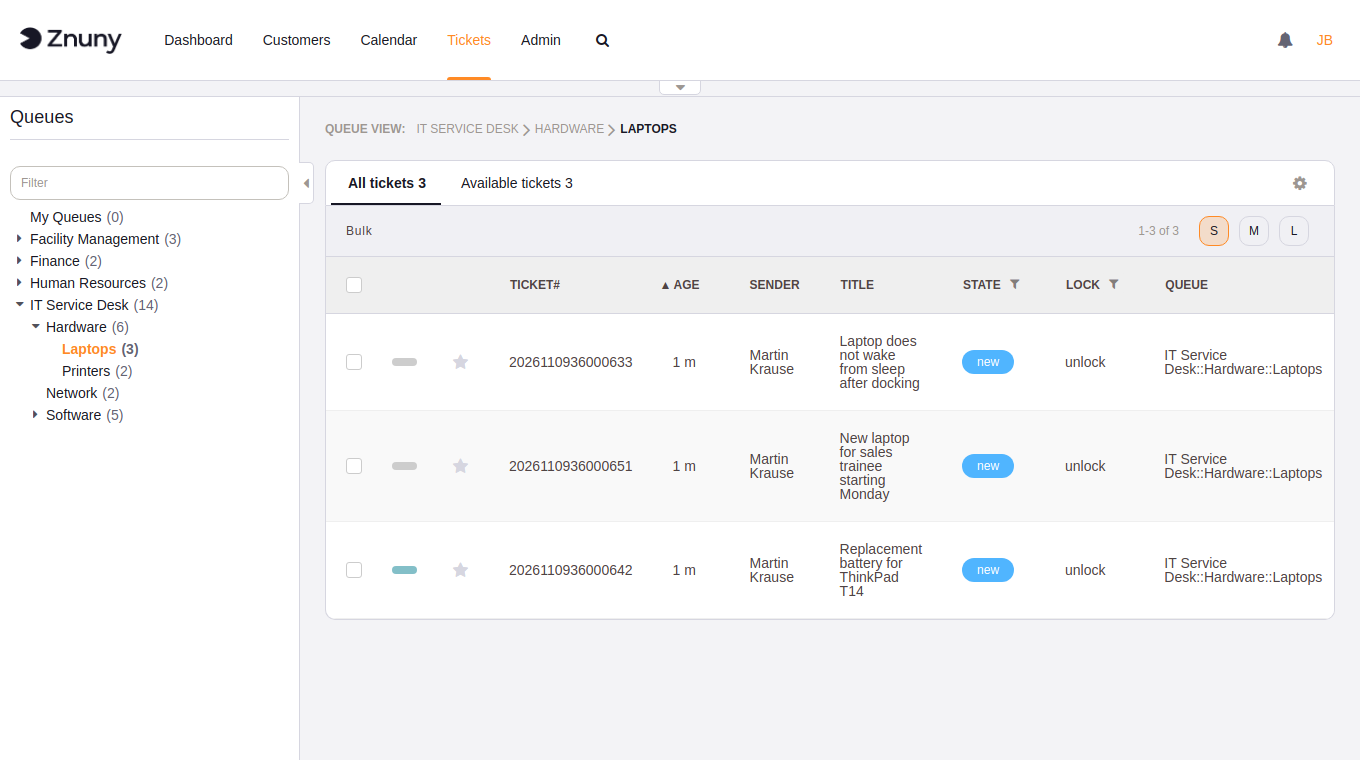
Moves the queues into a sidebar, just like most file explorers. Branches open and close with the arrow. You can also filter queues by name. Znuny remembers which branches you had open for your next visit.
The small arrow on the edge collapses the sidebar to give you more room when needed.
The Service View
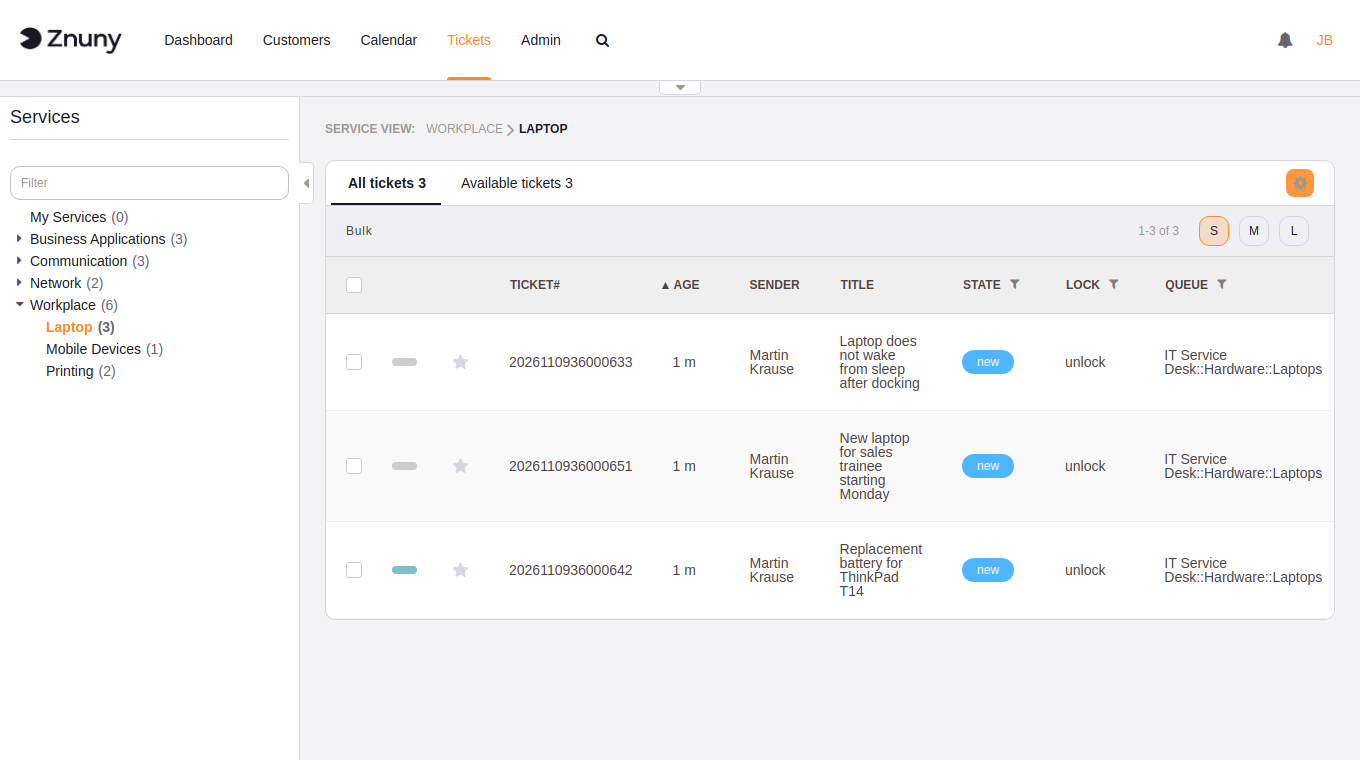
The service view provides the same options.
The system default
The default for all agents comes from two settings, one per view:
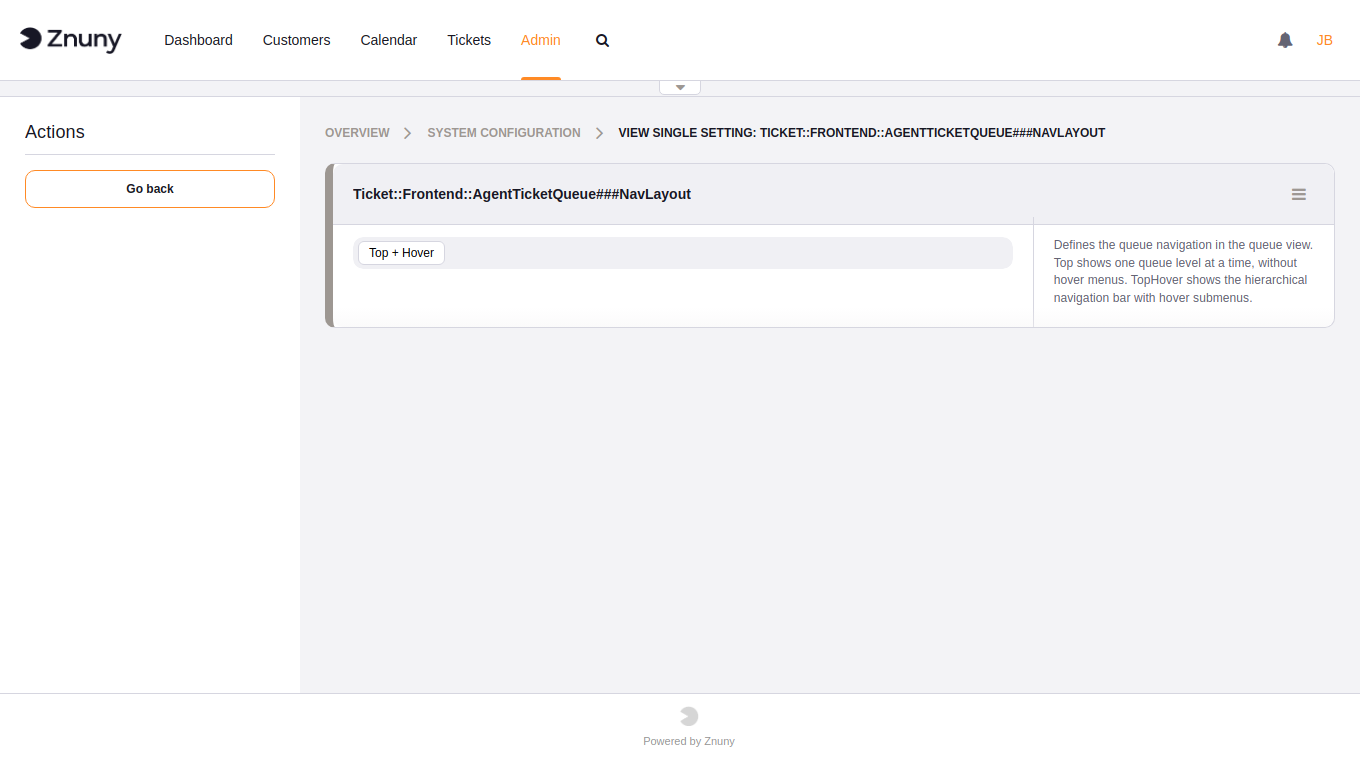
Ticket::Frontend::AgentTicketQueue###NavLayoutfor the queue viewTicket::Frontend::AgentTicketService###NavLayoutfor the service view
Both offer Top and Top + Hover, and both ship as Top, so nothing changes for your agents until you decide it should.
Your choice
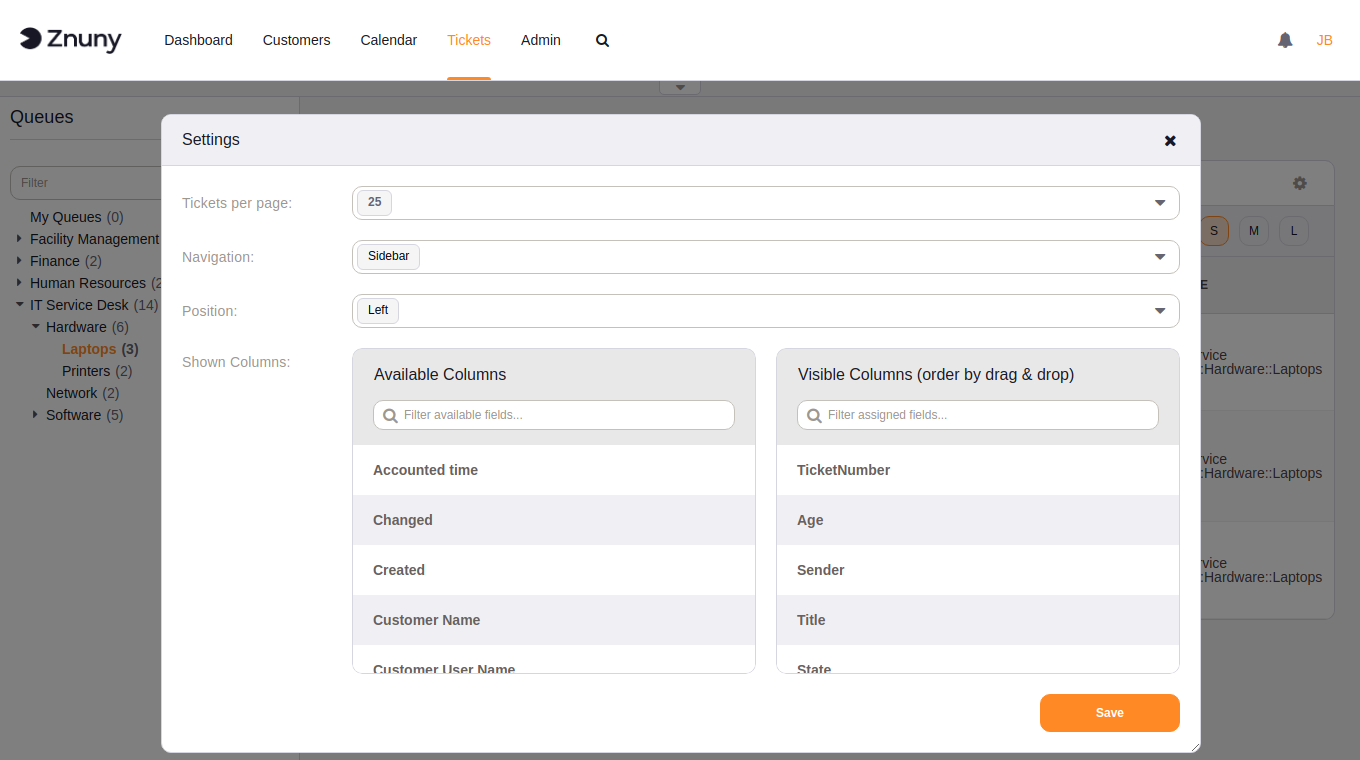
Agents don't need an admin to switch. In the queue view or the service view, click the gear icon above the ticket list. The settings dialog now has two more fields:
- Navigation: System default, Top, Top + Hover or Sidebar
- Position: whether the sidebar sits left or right of the ticket list
Save, and the new layout is there on the next page. The choice is stored per agent and per view, so you can use the sidebar for queues and keep the plain bar for services. "System default" brings you back to whatever the admin has set.
Choosing the right view
Top suits small, flat queue lists. Top + Hover gets you more visibility at depth. The sidebar is the one for large trees: everything stays in view, and the filter finds queues faster.
Setting: Ticket::Frontend::AgentTicketQueue###NavLayout, Ticket::Frontend::AgentTicketService###NavLayout
Where: Admin > System Configuration > Frontend::Agent::View::TicketQueue, Frontend::Agent::View::TicketService
- Blogpost