
A screenshot of an error, a log file, and, two emails later, the delivery note for the device. Agents have always had to download these files and open them in an external program. Collecting all files for a long ticket meant clicking every download link one by one and uploading them again to reuse them in other messages.
Znuny LTS 7.5 brings these jobs into the ticket. The functions come from two add-ons, Znuny-AdvancedAttachments and Znuny-ZoomArticlePDFPreview, which are now part of the framework. If you run either add-on today, the upgrade removes the package and carries over your settings.
All attachments of a ticket in one place
The ticket detail view gets a new sidebar widget: Ticket attachments. It lists every file for every article in the ticket, so you no longer have to scroll through the conversation to find the log the customer sent last week.
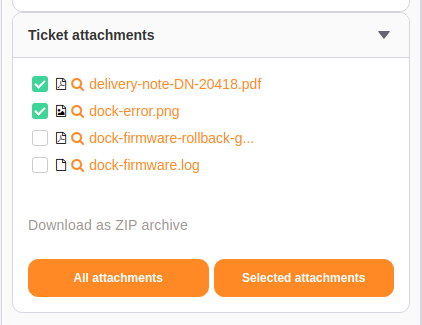
All attachments download the whole set as one ZIP archive. Tick the files you need, and Selected attachments downloads only those. Files with the same name from different articles get a number added in the archive, so nothing is overwritten.
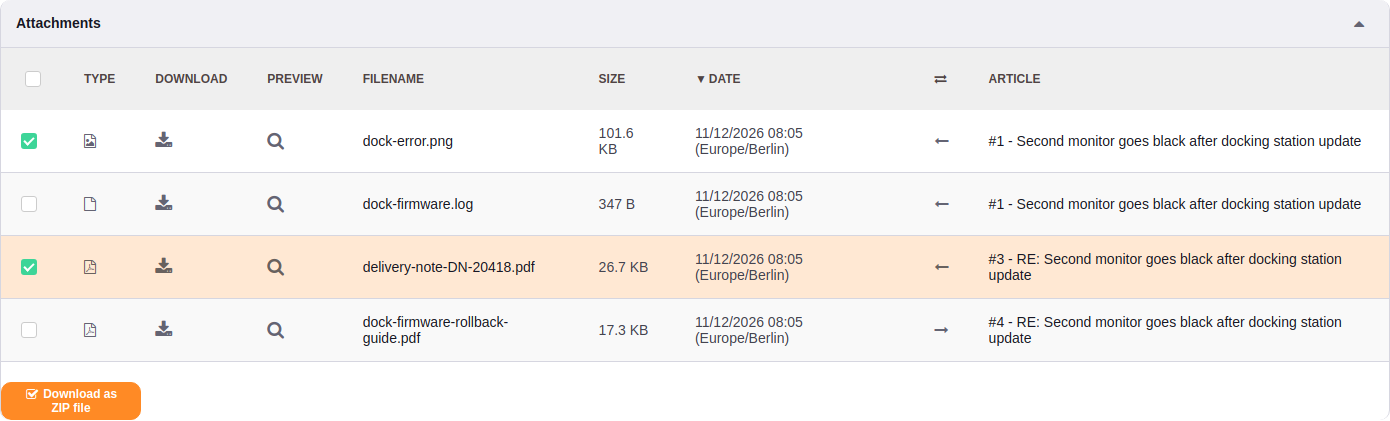
For tickets with many files, there is also a full list. Open it from the ticket menu (Attachments). It shows every attachment with type, size, date, direction, and the article it came from. The list can be sorted and filtered, hides inline images on request, and downloads the selection as a ZIP file.
Look at a file without leaving the ticket
Next to each image, PDF, and text file, there is now a magnifier icon. Click it, and the file opens in an overlay above the ticket. The caption shows the file name and its position, and the arrows page through the other previewable files in the same list.
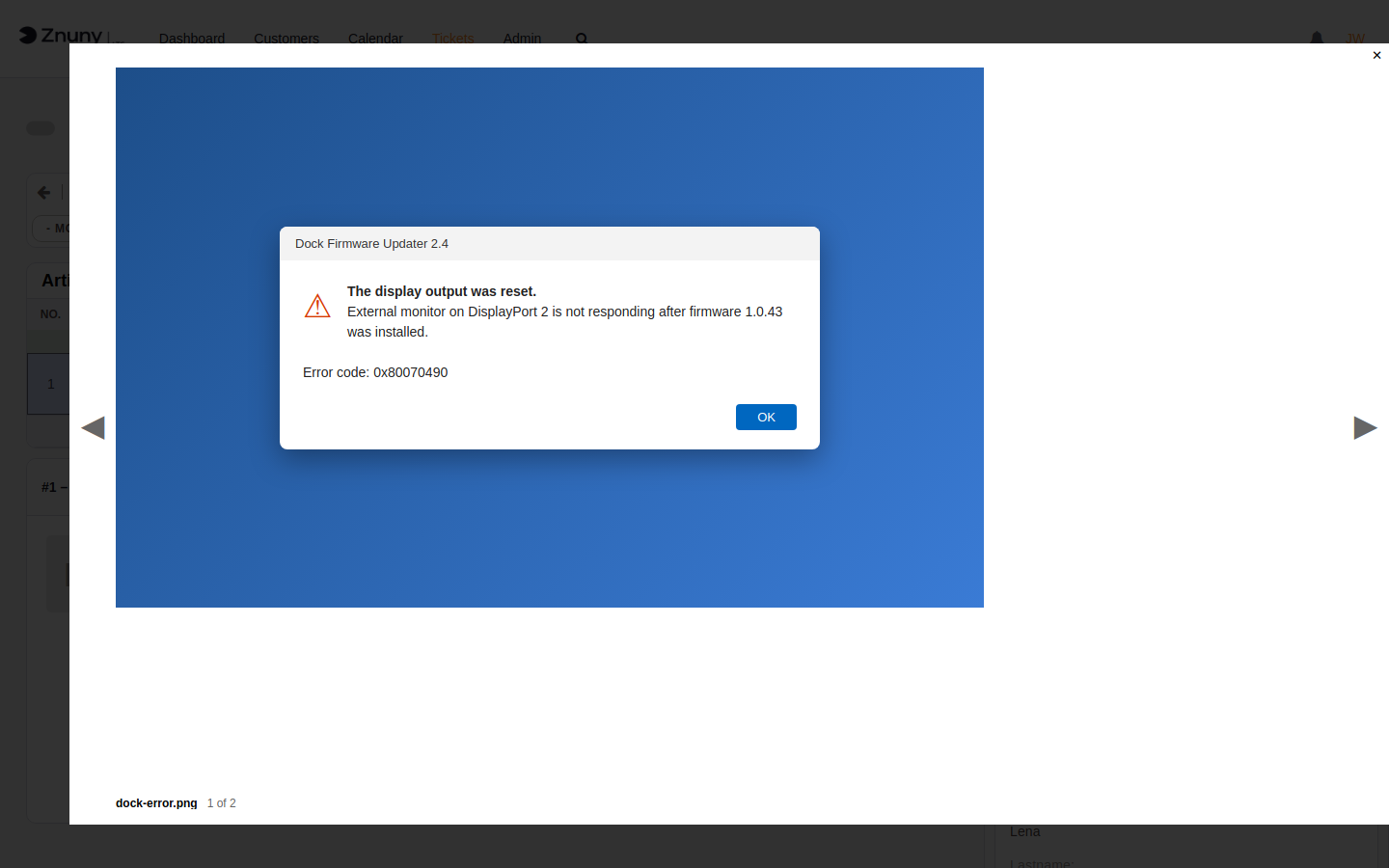
The overlay works in the article attachment list, in the sidebar widget, and in the full attachment list. It also works for files you have just uploaded in a reply, note, or phone ticket before you send anything, and for customers who upload files on the new ticket screen. Escape closes it.
Which file types get a preview is up to you. The defaults cover PNG, JPEG, GIF, BMP, WebP, and SVG images, PDF, and text formats such as plain text, Markdown, XML, and JSON.
PDFs right inside the article
PDFs get one more option: the first PDF of an article opens as an embedded preview directly below its attachments, without a click. In the article, the magnifier next to a PDF opens and closes this embedded view. A delivery note or an offer can be read in place while you write your answer.
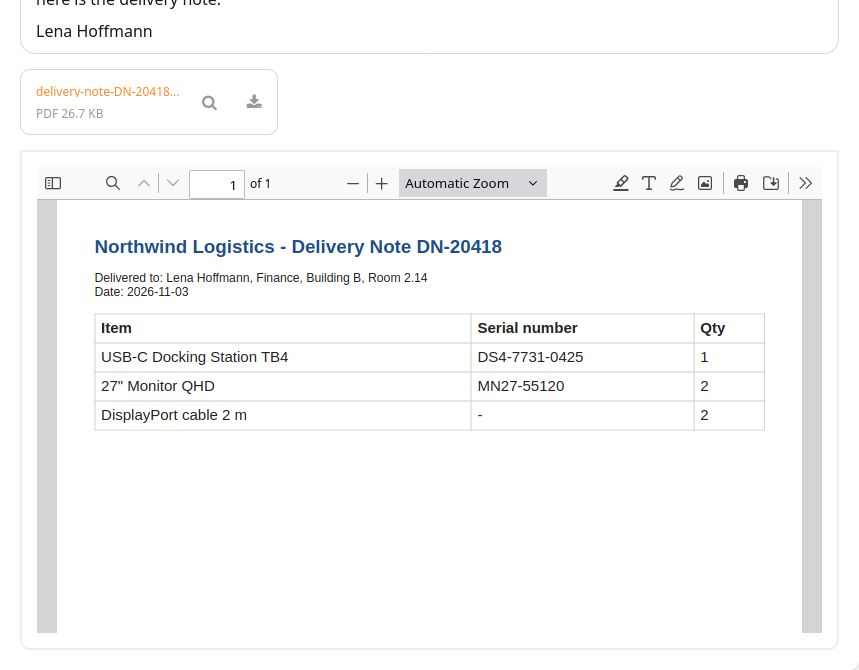
You decide which tickets this applies to. ArticleZoomPDFPreview###TicketAttributes###ActivatePreview and ArticleZoomPDFPreview###TicketAttributes###ShowFirstPreview take ticket attributes and values, for example, a queue or a type. Both are empty by default, which means every ticket. Fill them in to limit the embedded preview to the queues that work with PDFs every day. Width and height are set in ArticleZoomPDFPreview###Width and ###Height, and agents can change both in their own preferences.
Resend a file without downloading it
The reply, forward, note, phone, pending, owner, and close screens now show Add attachments of other articles below the upload field. Tick the delivery note from three emails ago, and it is attached to the new article exactly as it was received.

Only files from the same ticket can be reused. The screens that offer the selection are listed in Attachment###SelectionActions.
The settings
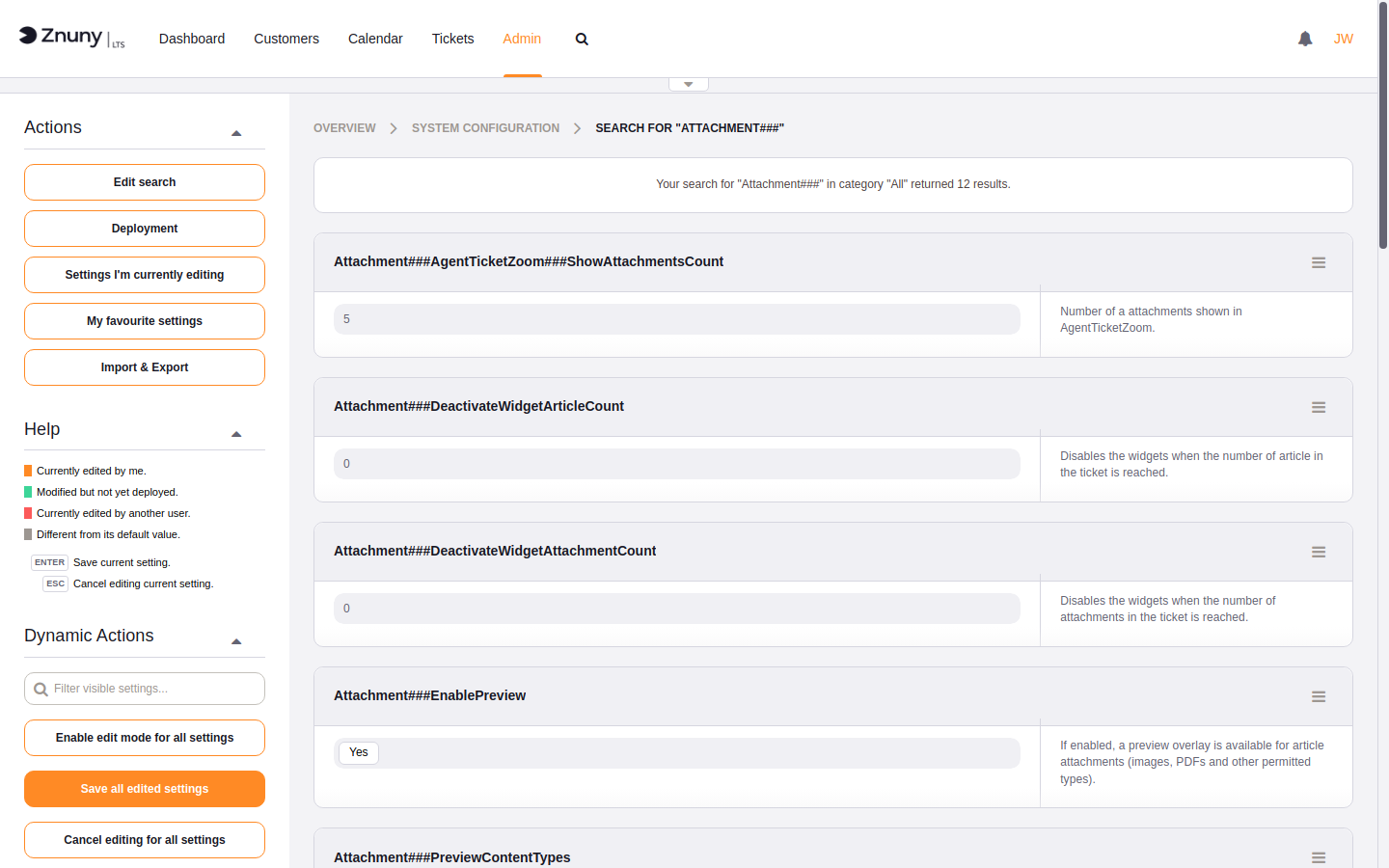
All settings are under Admin > System Configuration. Search for Attachment### to see the attachment settings together:
Attachment###EnablePreviewswitches the preview overlay on or off.Attachment###PreviewContentTypesdecides which file types get a preview.Attachment###ShowAttachmentsCountandAttachment###AgentTicketZoom###ShowAttachmentsCountset how many files are listed before Show more.Attachment###DeactivateWidgetArticleCountandAttachment###DeactivateWidgetAttachmentCounthide the widget on very large tickets.- With
Attachment###ShowDuplicateFilesswitched off, a file that was sent several times is listed only once.
Click a value to change it, then save.
Setting: Attachment###EnablePreview, Attachment###PreviewContentTypes, Attachment###SelectionActions, ArticleZoomPDFPreview###TicketAttributes###ActivatePreview
Where: Admin > System Configuration > Core, Frontend::Base and Core::Znuny::ZoomArticlePDFPreview
Takes effect: immediately on save, no restart required